 eRAD
PACS Server
eRAD
PACS Server

eRAD
PACS Server
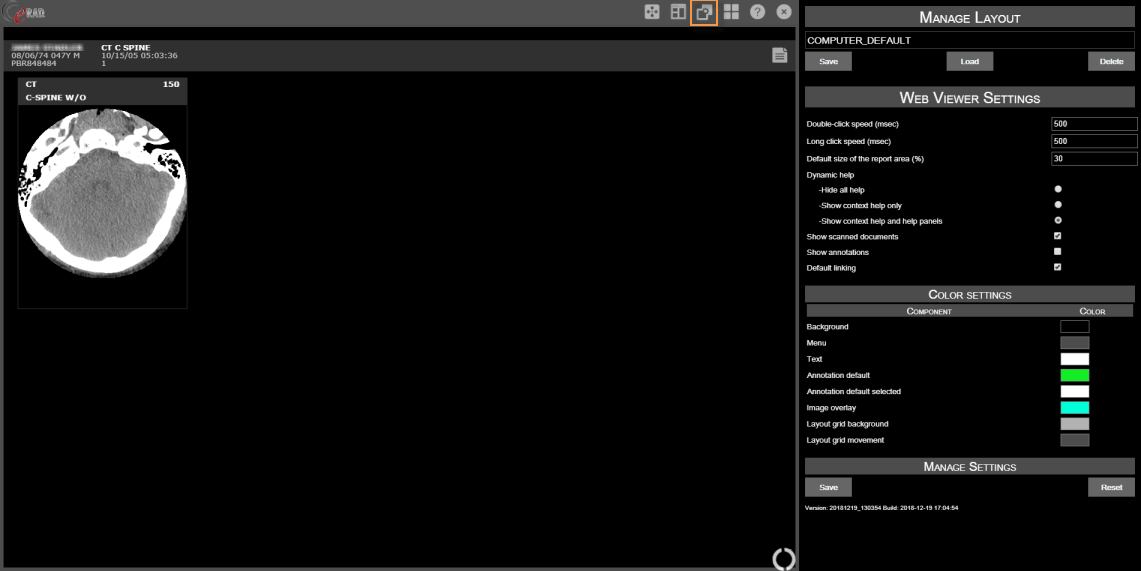
To change the web viewer settings, select
the Toggle Settings Panel  icon.
icon.
| Setting | Default | Description |
| Double-click speed | 500 msec | Multiple clicks within the defined time period are recorded as a doubleclick action. |
| Long click speed | 500 msec | |
| Default size of the report area | 30% | The percentage of the screen allocated to the report when displayed |
| Dynamic help | Hide all help | |
|
Show context help only | |
|
Show context help and help panels (default) | |
| Show scanned document | Enabled |
Include objects tagged as scanned documents in the web viewer |
| Show annotations | Disabled |
Include annotations |
Default linking |
Enabled |
Include linked studies |
Users are able to create and manage layouts from the Settings Panel. Frame layouts can also be created and saved under a new customized name.
To change a grid layout select the Change
Window Layout  icon. Dragging the mouse
from the top left corner down will allow the user to draw or define a
generic layout for the series frames.
icon. Dragging the mouse
from the top left corner down will allow the user to draw or define a
generic layout for the series frames.
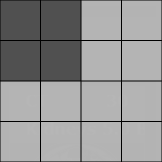
To create a custom layout:
The new layout will now appear when the Toggle
Layout  icon is selected.
To change settings in a created layout:
To load a layout in the viewer:
Color settings are also able to be changed from the Settings Panel.
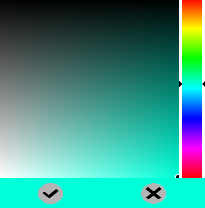
To change a color setting:
Select the color to change
Click anywhere on the color grid to select a color
Click the Save  icon
icon
| Component | Default Color |
| Background | R:0 G:0 B:0 |
| Menus | R:76 G:76 B:76 |
| Text | R:255 G:255 B:255 |
| Annotation Default | R:0 G:255 B:216 |
| Annotation default selected | R:255 G:255 B:255 |
| Image overlay | R:0 G:255 B:216 |
| Layout grid background | R:178 G:178 B:178 |
| Layout grid movement | R:76 G:76 B:76 |
Select the Save to apply all changes or Reset to start over.