Because patients, providers and schedulers can create appointments/orders, there can sometimes be confusion over who is creating the appointment/order, resulting in duplicate appointments or orders intended for the same service.
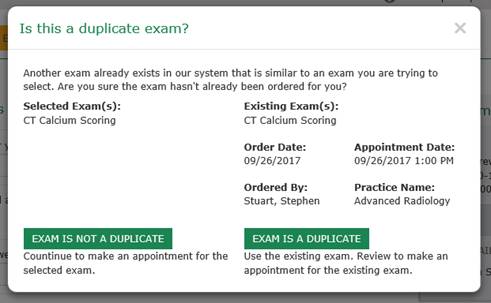
The Connect portal will now present a pop-up message that notifies the patient that an order may already exist for the appointment they are trying to make. After the patient has selected a procedure to schedule, an assessment will be done to see if there are any scheduled or unscheduled orders that are likely to be a match. If so, the following message is displayed.
If the patient chooses “Exam is not a duplicate,” the window will close and the patient can continue scheduling the new order. If the user clicks “Exam is a duplicate,” the workflow will be different depending on whether the matching order is scheduled or unscheduled.
· If scheduled, the patient will be redirected to the Exam Detail page where they can review the scheduled exam and reschedule if a different date/time is desired.
· If the order has not yet been scheduled, the new order that has been started by the patient will be replaced with the existing order. The patient can proceed with scheduling.
The following details describe the logic used to determine if there is a possible existing order that matches what the patient is scheduling.
· Matching Unscheduled Order:
o A study in Ordered status that is less than 2 weeks old and the same Procedure Group Code as an exam the patient is attempting to schedule.
· Matching Scheduled Order:
o A study in Scheduled status that is scheduled within the next 30 days and the same Procedure Group Code as an exam the patient is attempting to schedule.
· Other considerations:
o If the patient is scheduling multiple procedures, if any individual procedure is a possible match, the screen will be presented to the patient.
o If the patient has a scheduled or unscheduled order with a Procedure Plan, it will be considered a match if the patient attempts to schedule either the same Procedure Plan or a single procedure with the same Procedure Group Code as one of the procedures from the Procedure Plan.
o If there are multiple possible matches, the system will order all possible results first by scheduled date and requested date. Anything already scheduled will be the priority option.
If the patient has a matching order and it is not configured to be scheduled via the portal, the patient will be prompted to contact the Scheduling Department if they indicate that the exam is a duplicate.
Ideally, DEXA Bone Mineral Density exams should be performed on the same piece of equipment each time, in order to calculate bone density rate of change. This is because calibration may vary between scanners.
Messaging has been added in the Patient Portal to inform the patient why this is important and to identify the center(s) where prior DEXA scans have been done.
A new System Configuration setting, DEXAProcedureGroupCode, has been created. The administrator should enter the value that represents the Procedure Group Code assigned to the DEXA Procedure Codes. This will allow the system to identify when the exam to be scheduled is a DEXA study.
The next step in the configuration required for this feature must be done in the SiteGroup lookup table. This table allows an administrator to group various sites together so that the selected sites can be handled as a common entity for a variety of workflows. For the DEXA functionality, a new Site Group Type has been created to represent a group of sites that have been configured in such a way that the patient will receive an accurate rate of change calculation by using any of these DEXA units. Site Groups must be created for each group of DEXA sites that can be used interchangeably. The new DEXA Exam Group Site Group Type should be used to identify the groups.
When the patient schedules an exam with the Procedure Group Code that matches the DEXAProcedureGroupCode System Configuration setting, the RIS will evaluate whether the patient had a previous DEXA study and where. The Site will be compared to the Site Group table (DEXA Exam Group) to determine whether there are other sites that are compatible. The previous site and any compatible sites will be recommended for the patient’s future exam.
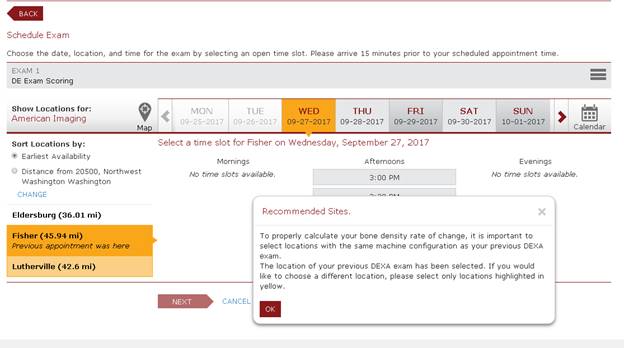
In the following screenshot, the patient has had a prior DEXA at the Fisher site and the Lutherville site is in the same DEXA Exam Group (indicating that the two sites have compatible DEXA equipment). The Fisher site is automatically selected and the Lutherville site is also highlighted in a paler yellow. The explanatory message encourages the patient to choose between these sites for the best possible exam.
If the patient decides to choose an appointment at the Eldersburg site, the pop-up shown below will display because Eldersburg is not part of the same DEXA Exam Group as the site of the patient’s prior study.
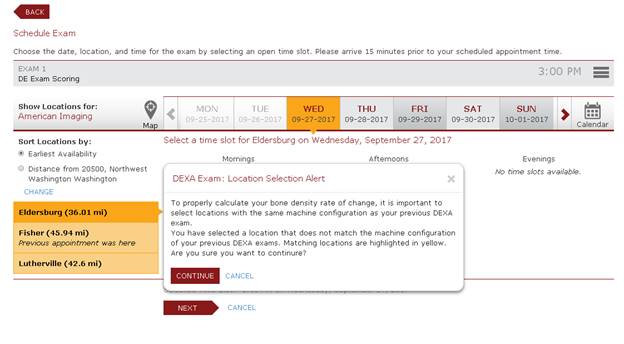 The patient is allowed to continue, but must confirm that they wish to continue scheduling at a site that is not recommended.
To improve the success rate for patients completing the Create Account workflow, several changes have been made to the way verification codes function.
Two scenarios commonly cause issues for patients completing the account creation workflow:
1. Patients suspend account creation prior to retrieving the verification code from the email. When they return later in the day after checking their email, the verification code has expired.
2. Patients are impatient to wait for the email to arrive and click the “Send It Again” link, generating a second code which expires the first. When the first arrives, they believe it is the second and attempt to use the code. Because the request for a second code has invalidated the first code, it does not work and patients abandon the workflow.
To address these two scenarios, two enhancements have been made.
First, it is now possible to configure the number of hours before a verification code will expire. This is done via an application.config setting: ValidationCodeExpiration, which has a default of 24 hours.
The second change is that when a patient requests to re-send the verification code, the RIS will attempt to send the same code, instead of issuing a new one. If the original verification code is no longer active or cannot be located, a new verification code will be sent.
Any pre-existing validation codes will maintain the original 2-hour expiration.
If a customer wishes to have an expiration of something other than 24 hours, the ValidationCodeExpiration application configuration must be added the applicationsetting.config file, with a valid integer value.
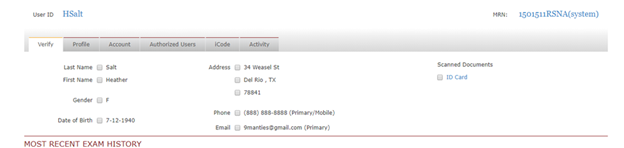
When assisting patients with the Patient Portal, administrators often need to verify the patient’s identity based on the information available to them on the Verify tab. In addition to demographic data such as date of birth, address, phone and email, administrators often find it helpful to use scanned documents such as patient IDs and insurance cards.
To make this possible, a new System Configuration setting, PPAdminVerificationScanDocumentType, has been added. To make attachments available, enter a value consisting of a comma separated list of any desired Scan Type Codes. For example, ID,InsuranceCard. At this time, only Patient Level attachments are supported. A release in the near future will expand this option to include Order and Exam Level attachments as well.
If the patient has an attachment of the configured Scan Type, a list will be displayed to the Portal Admin. Clicking on a scanned document name will allow the user to view the image and a checkbox is available next to each scanned document to indicate that it was used to verify the patient’s identity.