Patient Portal
Summary
This enhancement to the Patient Portal introduces the ability for patients to share selected exams with others via a time-limited, password protected link. This will allow patients to share exam results with physicians and be notified each time the link is used.
Feature Description
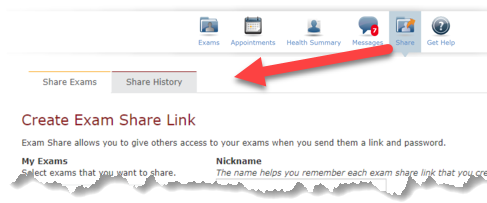
With this change, a new Share button has been added to the main toolbar that allows patients to create a link and password to share selected exams with others. Anyone with the link and password can access the selected exams—even if they do not have a portal account. This will allow patients to share exam results with other physicians. Whenever a shared link is accessed, messages are sent to both the patient's email and phone number.
Patients can share exams and review and manage access.
Creating a Shareable Link
From the Share Exams tab, users can select one or more exams to share, and create a shareable link:
· Exams must be past Scheduled status, such as Arrived or Signed.
· The Nickname, Password, and Expiration Date fields are required.
· By default, downloading of shared images is enabled, however this can be disallowed by unchecking the Permission to Download Images checkbox.
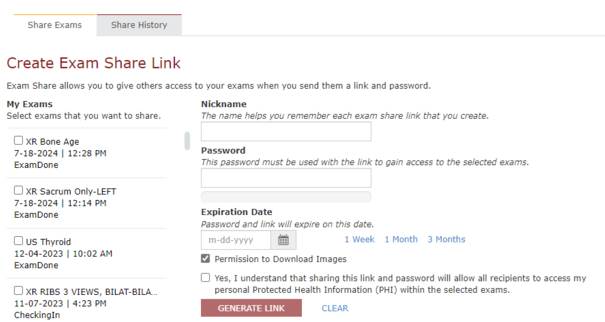
Clicking the GENERATE LINK button creates a password-protected URL:
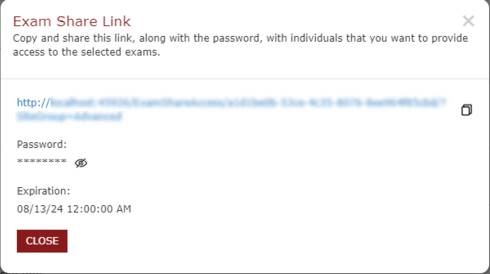
Users may then share the password and link to their exam results with physicians or other individuals. Only necessary information will be shown, and the patient will be notified each time the link is accessed.
|
|
Anyone provided with this link and password will have access to the selected exams until the link expiry date. No Portal account or RIS ID is required. |
Managing Shared Links
From the Share History tab, users can manage and review shared items.
Active Exam Share Links Tab
From this tab, users can:
· Preview the share by following the shared link.
· Copy the link and password using the icons displayed.
· Expire active links.
· Review access activity for the link to shared exams. Note that the presence of a timestamp indicates the link was accessed but does not confirm login was successful.
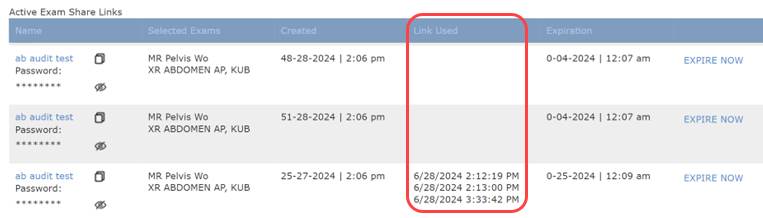
Access to shared exams can be monitored.
|
|
In order for history details such as Last Accessed to appear, audit information capture must be enabled via the existing TracePortalCalls configuration setting. |
Expired Exam Share Links Tab
From this tab, users can:
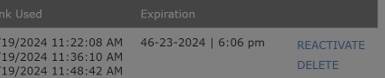
· Re-activate expired links.
· Delete expired links
Users may manually expire (deactivate) a link at any time, and expired links may be re-activated (un-expired) by setting a new expiration date:
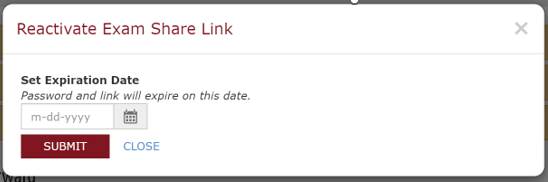
Reactivated links are still accessed using the original password.
Additionally, Shared Links are accessible via the Admin Tool, allowing system administrators to expire links on behalf of patients.
Accessing Shared Links
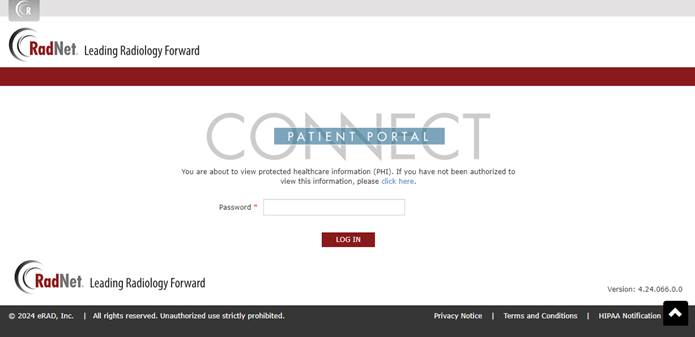
A shared link will take the user to a login page, where they are prompted for the password created by patient:
|
|
Optionally, a custom layout may be enabled via the PortalLayoutExamShareAccess configuration option. |
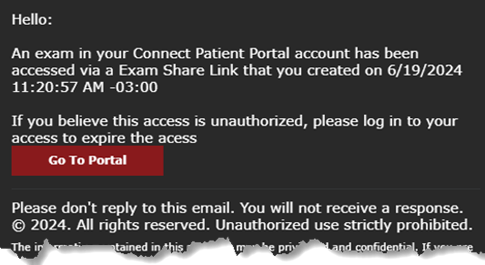
When a shared link is accessed, the patient is notified, regardless of successful login:
Upon successful login, available details are displayed:
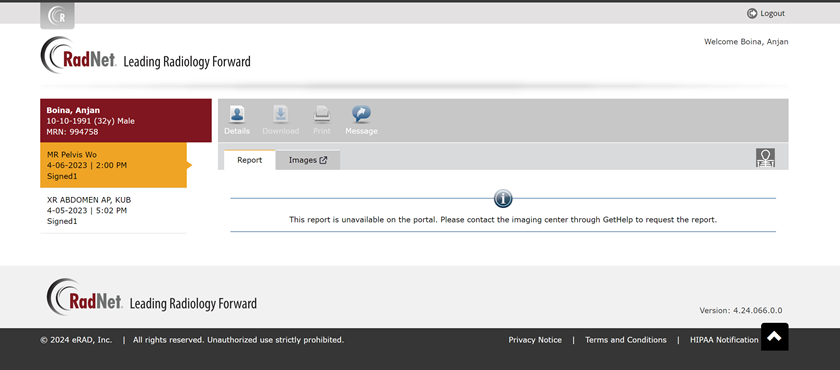
Available details will be displayed with the default layout.
Security
To ensure security:
· Only necessary information will be shown. Other information, such as the Activity, C-CDA, and Messages tabs are not available.
· Each time the link is accessed, regardless of successful login, a message is sent to both the patient's email and phone number, if on file
· If the wrong password is entered more than 3 times, the shared link will be immediately expired. The patient may REACTIVATE the expired link via the Expired Exam Share Links tab.
· Shared Links are also accessible via the Admin Portal, allowing system administrators to manage and expire links on behalf of patients, as well as review activities via Activity Log tab:
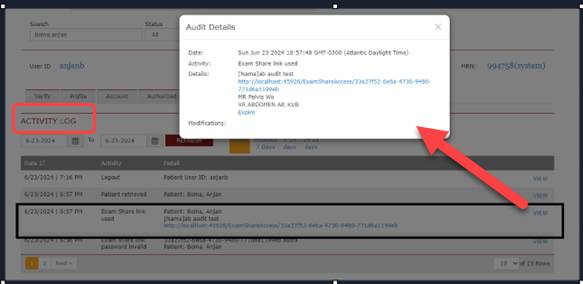
Audit activity details include when a link was Created, Expired, or Accessed.
Service Team Upgrade Instructions
The Service Team must complete the following actions to deploy this feature:
Portals
See also Changes to ParagraphConfig Lookup Table.
Changes to Events
A RADAR event is utilized to initiate email communication to the patient whenever the shared link has been accessed:
· Confirm with the RADAR support team that a new Portal Exam Share Access RADAR event type has been created for your system's RADAR user account.
Changes to lang
The following new settings were added for column headings on the Share History tab:
· Link Created
· Last Accessed
· Link Expires
Changes to applicationsettings.config
· Enable this feature by setting PPExamShareEnabled = True.
· If desired, an enhanced layout may be enable by setting PortalLayoutExamShareAccess = True. The included theme may be modified as required.
The following related settings were added or updated:
|
Setting |
Default |
Purpose |
|
PPExamShareEnabled |
False |
When True, the Exam Share feature is enabled. |
|
PortalLayoutExamShareAccess |
False |
When True the custom layout created for exam share access is used. When False, the default Portal layout is used. |
Configuration Instructions
System Administrators must complete the following actions to enable this feature and Service Team assistance is required for some actions:
RIS Client
Changes to SystemConfig Lookup Table Settings
· To capture audit information, ensure the existing TracePortalCalls configuration setting is enabled.
Changes to ParagraphConfig Lookup Table
· Optionally, adjust the text of the new ParagraphConfig messages:
|
Setting |
Default |
Description |
|
PPGoToPortalButton |
Go To Portal |
The text on the button which displays in email/SMS that the patient receives when exam link has been accessed. Updated by #27189 |
|
PPExamShareAccessLandingPage |
You are about to view protected healthcare information (PHI). If you have not been authorized to view this information, please {0}. |
The message displayed to the user when accessing shared exams link. Updated by #27189 |
|
PPExamShareLinkNoLongerAvailable |
This link is no longer available. <br/>The link may have expired or been blocked for security reasons.<br/>If you need assistance, please call our contact center at {0} |
The message displayed to the user when exams shared link is not available or verification is failed. Here {0} will be replaced with contact number for assistance. |
|
PPExamShareYesConsentCheckbox |
Yes, I understand that sharing this link and password will allow all recipients to access my personal Protected Health Information (PHI) within the selected exams. |
The message displayed to the patient when creating a share exams link and expiry date. Updated by #27189 |
|
PPExamShareCreateName |
<b>Nickname</b> <br/><i>The name helps you remember each exam share link that you create. </i> |
The message displayed to the patient when creating exams share link. Updated by #27189 |
|
PPExamShareCreatePassword |
<b>Password</b> <br/><i>This password must be used with the link to access the selected exams. </i> |
The message displayed to the patient when creating exams share link. Updated by #27189 |
|
PPExamShareSetExpirationDate |
<b>Expiration Date</b> <br/><i>The password and link will expire on this date. </i> |
The message displayed to the patient when creating a share exams link and expiry date. Updated by #27189 |
|
PPExamShareImagesDownloadAccess |
Permission to Download Images |
The message displayed to the patient when creating exams share link. Updated by #27189 |
|
PPExamShareLinkPasswordHeaderMessage |
Exam Share allows you to give others access to your exams when you send them a link and password. |
The message displayed to the patient in create exam share link section. Updated by #27189 |
|
PPExamSharedAccessNotificationTextEmailM essage |
Hello: <br/><br/> An exam in your Connect Patient Portal account has been accessed via an Exam Share Link that you created on {0} <br/><br/> If you believe this access is unauthorized, please log in to your access to expire the access {1} <br/> |
Plaintext version of the Shared Exam Access notification email sent to the patient when shared link has been accessed. Updated by #27189 |
|
PPExamSharedAccessNotificationSMSMessage |
Hello: <br/><br/> An exam in your Connect Patient Portal account has been accessed via a Exam Share Link that you created on {0} <br/><br/> If you believe this access is unauthorized, please log in to your access to expire the access {1} <br/> |
Plaintext version of the Shared Exam Access notification email sent to the patient when shared link has been accessed. Updated by #27189 |
|
PPExamSharedAccessNotificationHTMLEmailM essage |
Hello: <br/><br/> An exam in your Connect Patient Portal account has been accessed via a Exam Share Link that you created on {0} <br/><br/> If you believe this access is unauthorized, please log in to your access to expire the access {1} <br/> |
HTML version of the Shared Exam Access notification email sent to the patient when shared link has been accessed. Updated by #27189 |
|
PPExamSharedAccessFailedNotificationHTMLEmailMessage |
Hello:<br/><br/> Security alert: There was a failed attempt to access an exam in your Connect Patient Portal account.<br/><br/>There was a password failure accessing the Exam Share Link that you previously created on {0}.<br/><br/>This link has been automatically expired to prevent any further access to this data. If you wish to re-enable this shared link, please log in and select REACTIVATE from the Expired Exam Share Links tab.<br/>{1} |
HTML version of the Shared Exam Access notification email sent to the patient when shared link is unable to be accessed due to multiple incorrect passwords attempts. Updated by #27189 |
|
PPExamSharedAccessFailedNotificationSMSMessage |
Hello:<br/><br/> Security alert: There was a failed attempt to access an exam in your Connect Patient Portal account.<br/><br/>There was a password failure accessing the Exam Share Link that you previously created on {0}.<br/><br/>This link has been automatically expired to prevent any further access to this data. If you wish to re-enable this shared link, please log in and select REACTIVATE from the Expired Exam Share Links tab.<br/>{1} |
Plaintext version of the Shared Exam Access notification email sent to the patient when shared link has been expired due to multiple wrong passwords. Updated by #27189 |
|
PPExamSharedAccessFailedNotificationTextEmailMessage |
Hello:<br/><br/> Security alert: There was a failed attempt to access an exam in your Connect Patient Portal account.<br/><br/>There was a password failure accessing the Exam Share Link that you previously created on {0}.<br/><br/>This link has been automatically expired to prevent any further access to this data. If you wish to re-enable this shared link, please log in and select REACTIVATE from the Expired Exam Share Links tab.<br/>{1} |
Plaintext version of the Shared Exam Access notification email sent to the patient when shared link is unable to be accessed due to multiple incorrect passwords attempts. Updated by #27189 |
|
PPExamShareCopyLinkHeaderOnPopUp |
Copy and share this link, along with the password, with individuals that you want to provide access to the selected exams. |
The message displayed to the patient when exam link has been generated and copied to clipboard. Updated by #27189 |
|
PPExamShareAccessLoginTitle |
Exam Share Access Login |
Title displayed on the login page of the user who uses shared link. Updated by #27189 |
|
PPExamShareTitle |
Exam Share |
Title displayed on shared tab. Updated by #27189 |
|
PPExamShareImagesDownloadAccess |
Permission to Download Images |
The message displayed to the patient when creating exams share link. Updated by #27189 |
|
PPExamShareHeader |
Create Exam Share Link |
The message displayed under create exam share link tab. Updated by #27189 |
|
PPExamShareSelectAll |
Select All |
The message displayed under create exam share link tab. Updated by #27189 |
|
PPExamShareUnSelectAll |
Unselect All |
The message displays under create exam share link tab. Updated by #27189 |
|
PPExpiredExamShareLinks |
Expired Exam Share Links |
The message displayed under exams share history tab. Updated by #27189 |
|
PPReactivateExamShareLink |
Reactivate Exam Share Link |
The message displayed under exams share history tab on modal pop up when patient reactivates expired links. Updated by #27189 |
|
PPActiveExamShareLinks |
Activate Exam Share Link |
The message displayed under exams share history tab. Updated by #27189 |
|
PPExamShareLinkCopied |
Link has been successfully copied |
The message displayed when patient copies the exam share link. Updated by #27189 |
|
PPCreateExamShareLink |
Share Exams |
The text displayed on the Share Exams tab. Updated by #27189 |
|
PPExamShareGenerateLinkButton |
Generate Link |
The text displayed on the Generate Link tab. Updated by #27189 |
|
PPExamShareHistory |
Share History |
The text displayed on the Share history tab. Updated by #27189 |
|
PPSelectExamsToShareMessage |
<b>My Exams</b> <p>Select exams that you want to share. </p> |
The message displayed under create exam share link tab for selecting the exams list to share. Updated by #27189 |


